6 Mar 2026
Post by Elijah
Introduction
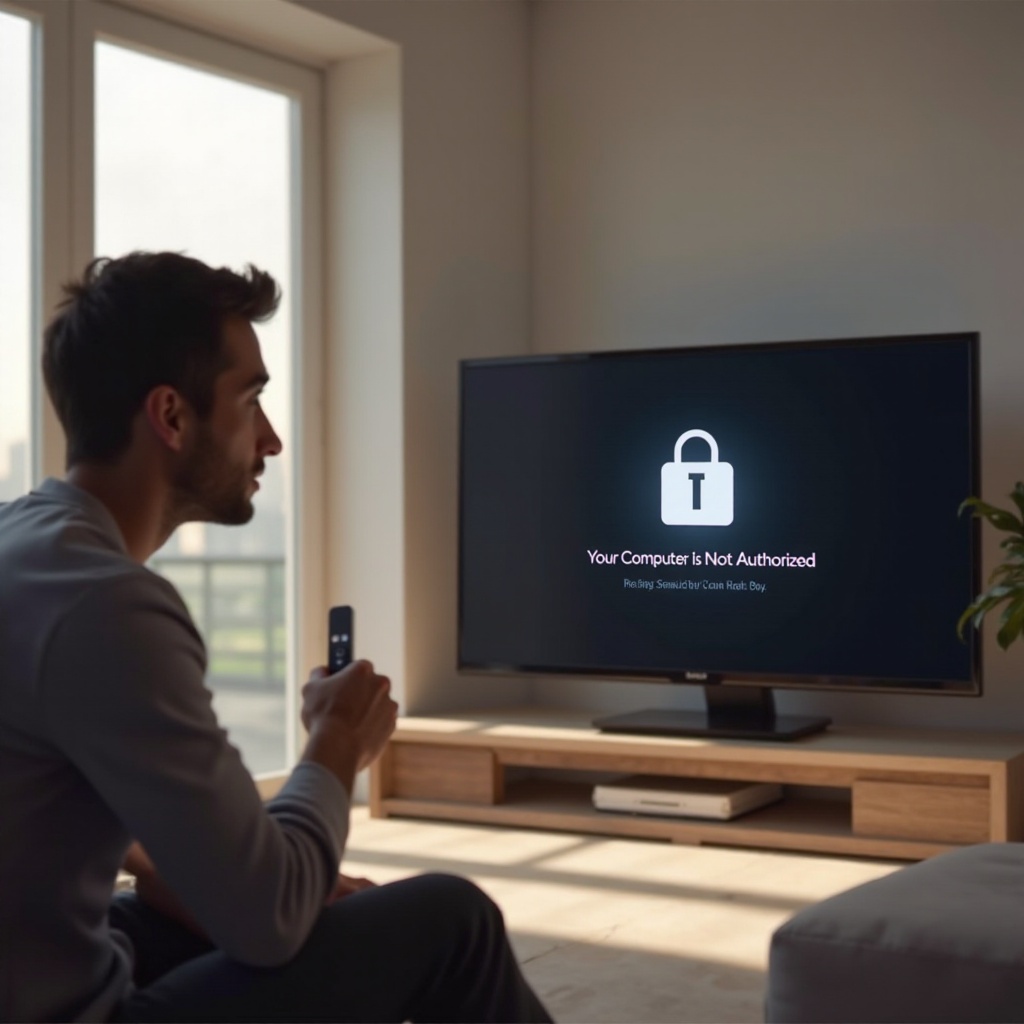
Facing the ‘Your computer is not authorized’ message on Apple TV can be quite a hassle. This error not only disrupts your viewing habits but also restricts access to your purchased content and streaming services. Having a good understanding of the issue and how to fix it is essential for an uninterrupted entertainment experience. This guide provides you with insights into identifying the causes and offers practical solutions to resolve and avoid authorization errors on your Apple TV.

Understanding Apple TV Authorization
Apple TV authorization ensures that only approved devices have access to content purchased through your Apple account.
What Is Authorization on Apple TV?
Authorization on Apple TV involves linking your computer and Apple ID to Apple services, thereby enabling the content access and purchase functionalities that the platform offers. This is a critical security measure that ensures only authorized devices linked to your Apple ID can access your content.
Why Authorization Matters
The significance of authorization lies in its ability to secure access to content and safeguard your account and financial data. Mismanagement of authorization can leave your account vulnerable, allowing unauthorized access and potentially causing privacy breaches.
Common Causes of Authorization Errors in 2024
Identifying the root cause is key to effectively troubleshooting any authorization issue you encounter.
Apple ID and Credentials Issues
- Entering an incorrect password frequently may lead to authorization errors.
- Using an outdated Apple ID or having an incorrectly stored password can cause disruptions.
Software and System Compatibility
- An outdated macOS or iTunes version might interfere with proper authorization processes.
- Compatibility issues between devices like Apple TV and your system software can also be a factor.
Network and Connectivity Challenges
- A poor internet connection might prevent Apple TV from properly communicating with Apple’s servers.
- Network restrictions due to firewalls or antivirus software may also block required connections.
Step-by-Step Guide to Resolve Authorization Issues
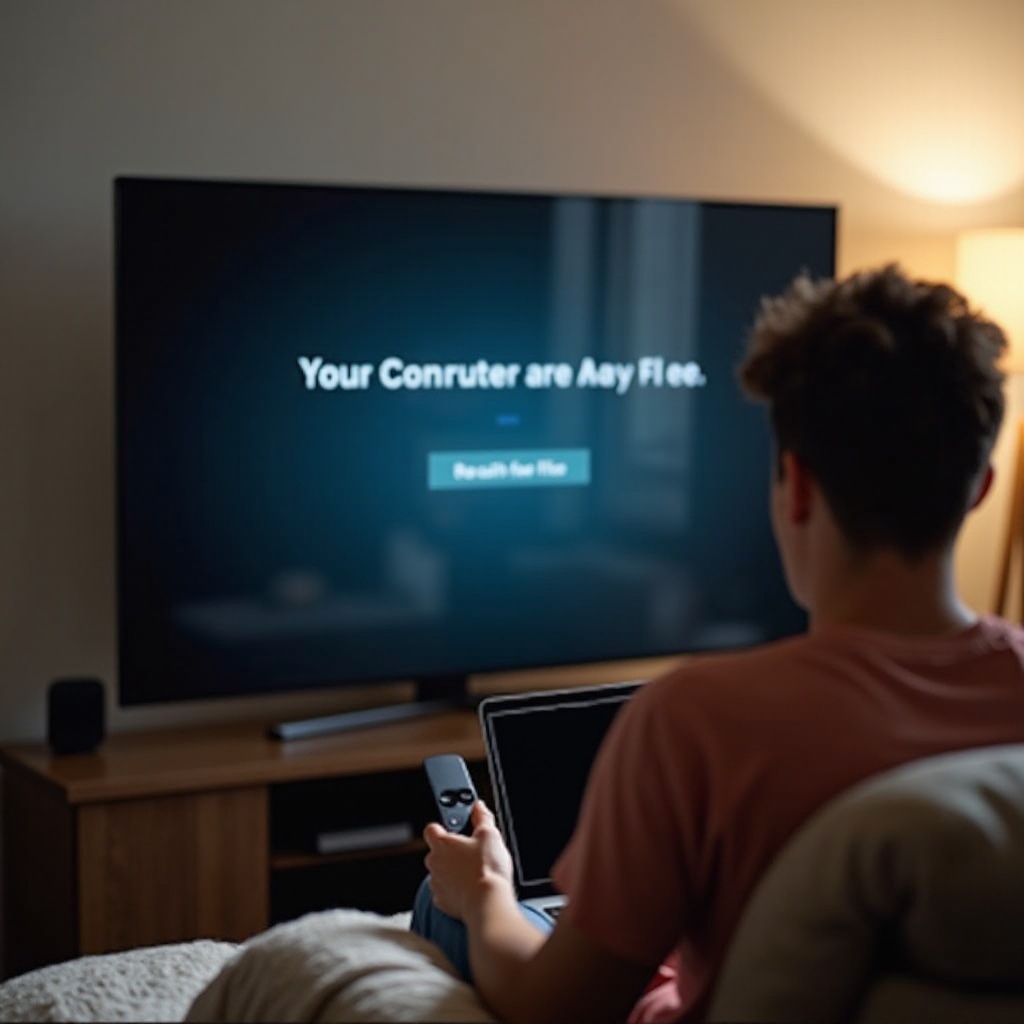
Once you are aware of the common causes, it’s easier to apply step-by-step solutions to solve the authorization problem.
Verifying Your Apple ID and Password
- Visit the Apple ID account website using a browser.
- Confirm your credentials by logging into your account.
- Update any outdated information associated with your account.
Updating macOS, iTunes, and Apple TV Software
- Go to the Apple menu, select ‘System Preferences,’ and click on ‘Software Update’ to check for macOS updates.
- For iTunes, open the application and navigate to the Help menu to check for updates.
- To update your Apple TV software, go to the settings menu and ensure you are on the latest version.
Checking Your Internet and Network Settings
- Confirm that your network connection is stable and operational.
- Restart your router to resolve any temporary connectivity issues.
- Ensure that firewall settings or antivirus software are not hindering Apple TV services from functioning properly.
Advanced Troubleshooting Techniques
If basic fixes are not effective, consider applying more advanced troubleshooting methods.
Reauthorizing Devices on Apple TV
- To deauthorize all computers, go to iTunes, navigate to Account > Authorizations, then select ‘Deauthorize This Computer.
- Once deauthorized, authorize your devices again and restart your system and Apple TV for the settings to take effect.
Utilizing Apple’s Safe Mode
- Enter Safe Mode on your computer to launch the system with only necessary software running.
- This can be instrumental in identifying and resolving software-related conflicts causing authorization issues.
Tips to Prevent Authorization Problems in the Future
Prevention strategies can save you from frequent troubleshooting.
Maintain Regular Software Updates
- Keep abreast of all updates for macOS, iTunes, and Apple TV to ensure software compatibility and security.
- Frequent updates help protect your system from vulnerabilities.
Secure and Manage Your Apple ID
- Regularly update to a robust password and enable two-factor authentication for increased protection.
- Verify and manage your Apple ID details to avoid potential issues with device authorization.
Conclusion
Resolving the ‘Your computer is not authorized’ error involves understanding its causes and diligently following the troubleshooting steps provided. By ensuring regular software updates, managing your Apple ID responsibly, and securing a stable network connection, you can prevent many potential authorization errors. Should these issues persist, seeking assistance from Apple Support can provide further resolution.
Frequently Asked Questions
How do I know if my computer is authorized for Apple TV?
You can check this in iTunes by selecting Account > Authorizations > Authorize This Computer. If authorized, a notification will confirm it.
Can I authorize multiple computers for Apple TV?
Yes, you can authorize up to five computers on the same Apple ID for accessing content.
What should I do if the authorization issue persists?
If the issue continues, consider contacting Apple Support or visiting an Apple Store for professional assistance.